
Cloud Providers
Cloud provider resources let you provision real cloud accounts and projects as part of your lab environment. Instead of simulating cloud services, participants get hands-on access to actual cloud infrastructure — enabling them to work with native consoles, CLIs, and APIs just as they would in production.
Instruqt supports three major cloud providers:
- AWS — Provisions a dedicated AWS account with configurable IAM users, managed policies, and service control policies.
- Azure — Provisions a dedicated Azure subscription with configurable users, roles, and service principals.
- GCP — Provisions a dedicated Google Cloud project with configurable users, roles, and service accounts.
Through the UI, you can define cloud provider settings such as enabled services, regions, users, and access policies — all without needing to write configuration files. Cloud provider sandboxes make it easy to build labs that teach real cloud skills using real cloud environments.
Creating a Cloud Provider resource
Section titled “Creating a Cloud Provider resource”Cloud provider resources can be created in the Sandbox tab. To create a new cloud provider resource, navigate to the Sandbox tab and click the + button. Select the desired cloud provider — AWS Account, Azure Subscription, or GCP Project — from the dropdown menu.
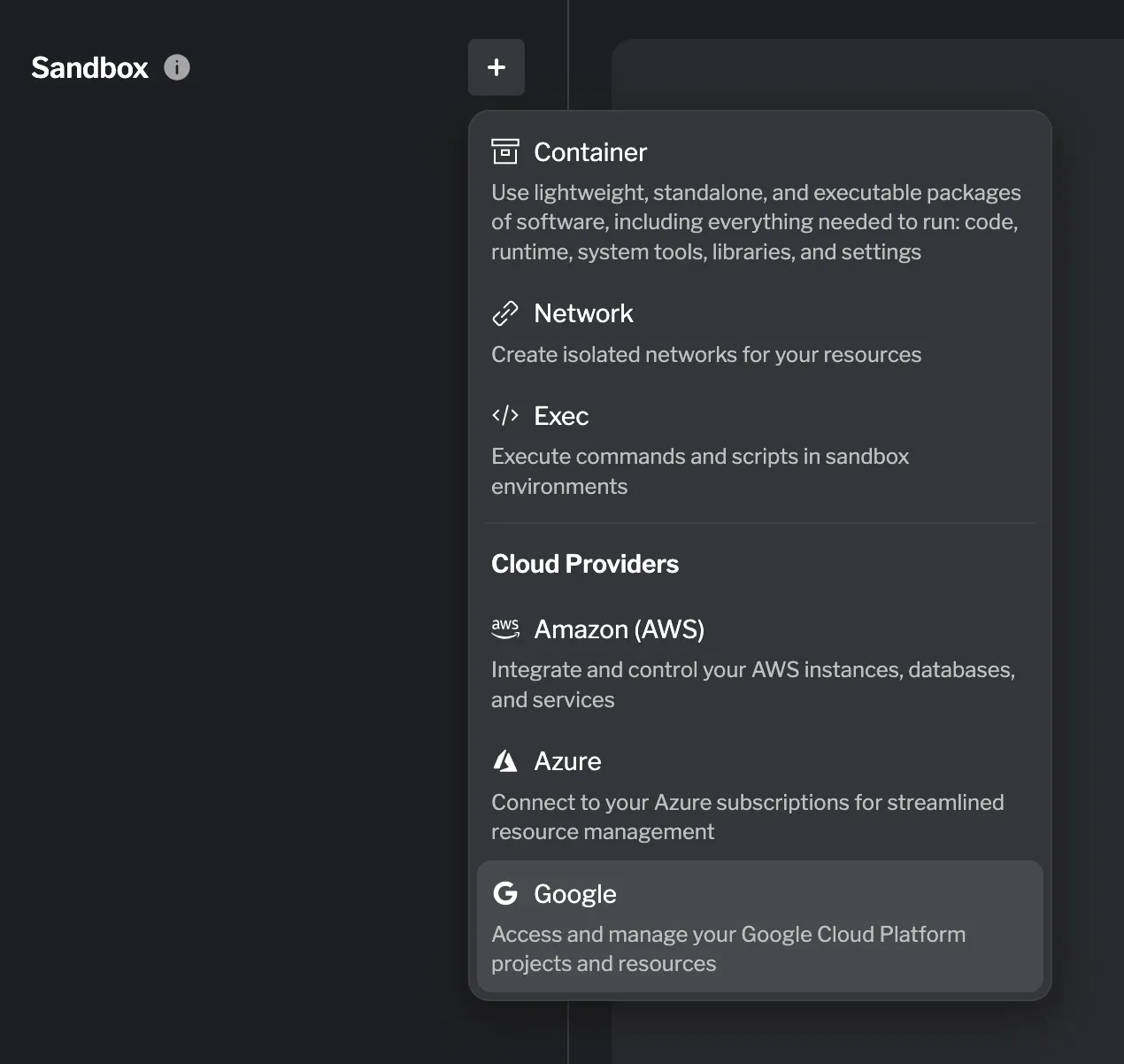
Start by naming the resource. Note that this is an internal name. Each cloud provider has its own set of configurable fields, detailed below.
Configuring multiple users
Section titled “Configuring multiple users”Each cloud provider resource supports creating multiple users with different roles and permissions. This allows you to model realistic access patterns within your lab — for example, you might create:
- A user with access limited to a specific set of services the participant will work with directly.
- A separate user scoped to a different set of services needed for another part of the lab.
- An admin user with broader permissions, used only for configuration or setup tasks.
By splitting responsibilities across users, you can guide participants through least-privilege workflows and demonstrate how role-based access control works in practice. To add multiple users, click the + button in the Users section of the cloud provider configuration panel and define the name and permissions for each one.
Editing a Cloud Provider resource
Section titled “Editing a Cloud Provider resource”To edit a cloud provider resource, select it from the list of existing sandboxes in the Sandbox tab. Click on the resource you want to edit, make your changes in the configuration panel, and then click Add changes to save your updates.
An AWS Account resource provisions a dedicated AWS account for the lab participant. You can configure which services and regions are available, define IAM users with custom policies, and apply service control policies to restrict account-level permissions.
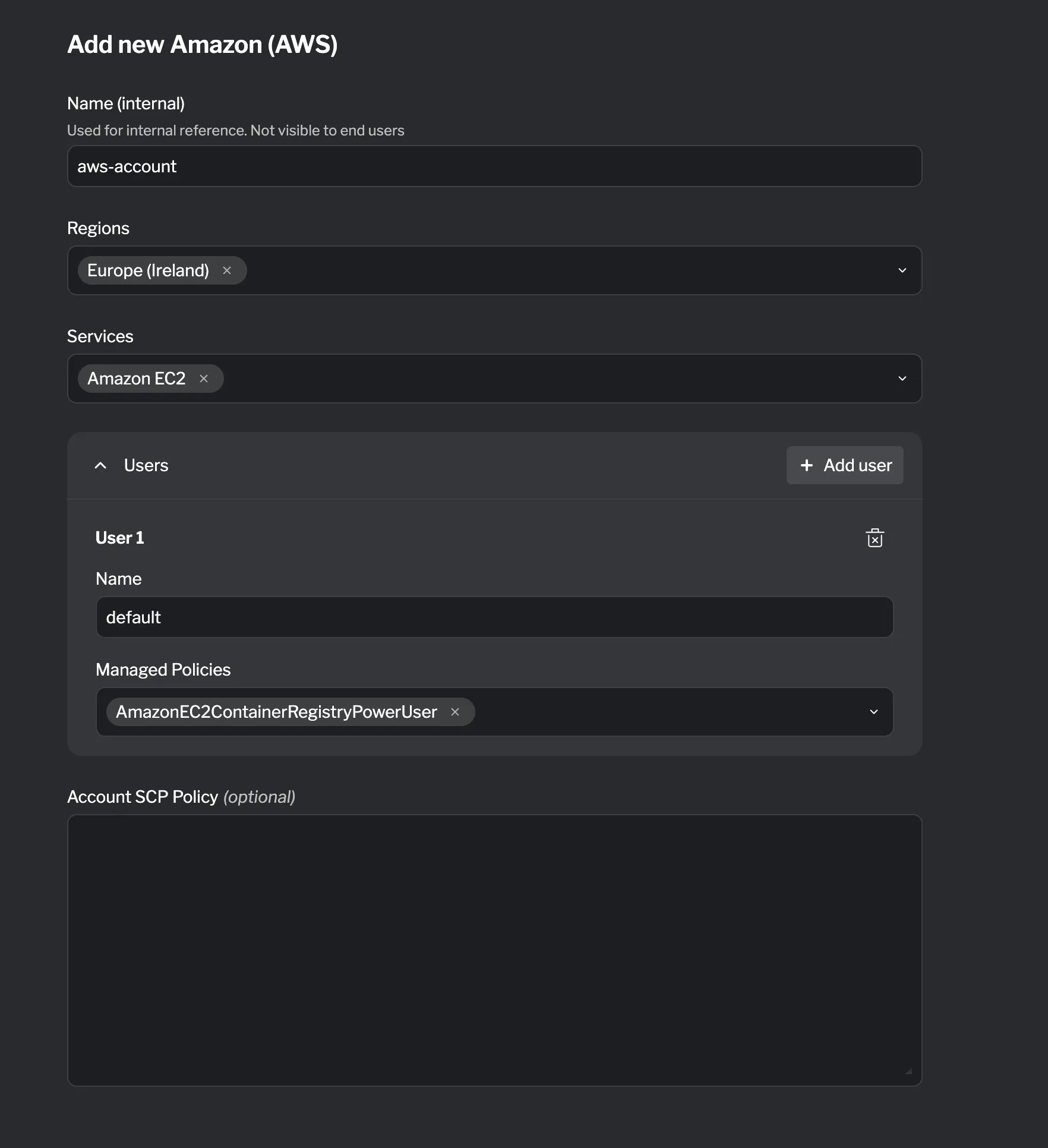
Configuration
Section titled “Configuration”| Field | Required? | Default | Description |
|---|---|---|---|
| Services | ✓ | List of AWS services to enable in the account | |
| Regions | ✓ | List of AWS regions to make available | |
| Tags | Key-value pairs for tagging the account | ||
| SCP Policy | Service control policy to apply at the account level |
| Field | Required? | Default | Description |
|---|---|---|---|
| Name | ✓ | Identifier for the IAM user | |
| IAM Policy | Inline IAM policy document for the user | ||
| Managed Policies | ✓ | List of AWS managed policy ARNs to attach |
An Azure Subscription resource provisions a dedicated Azure subscription for the lab participant. You can configure which services and regions are available, define users with role assignments, and create service principals for programmatic access.
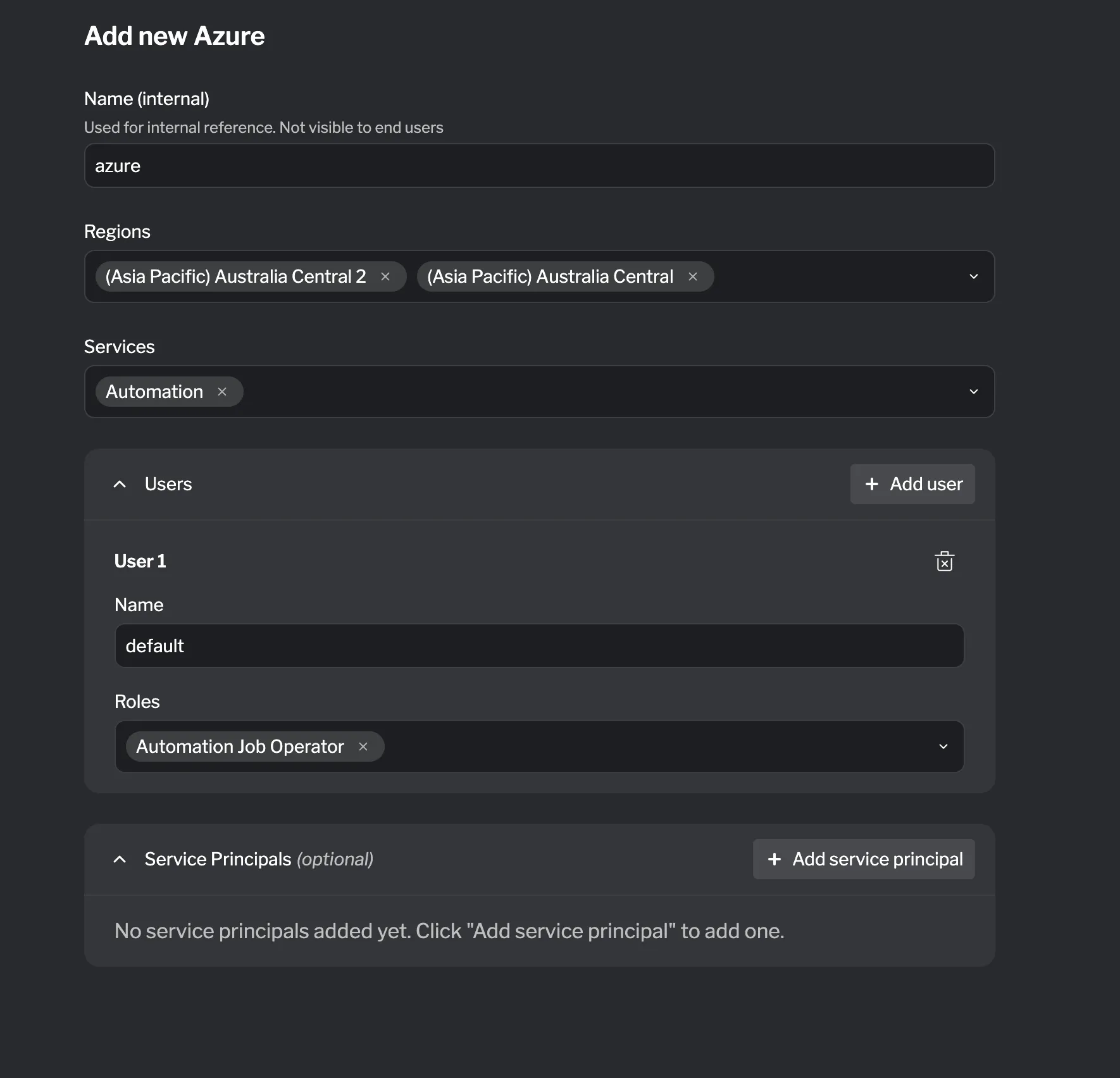
Configuration
Section titled “Configuration”| Field | Required? | Default | Description |
|---|---|---|---|
| Services | ✓ | List of Azure services to enable in the subscription | |
| Regions | ✓ | List of Azure regions to make available | |
| Tags | Key-value pairs for tagging the subscription |
| Field | Required? | Default | Description |
|---|---|---|---|
| Name | ✓ | Identifier for the user | |
| Roles | ✓ | List of Azure roles to assign to the user |
Service Principal
Section titled “Service Principal”| Field | Required? | Default | Description |
|---|---|---|---|
| Name | ✓ | Identifier for the service principal | |
| Roles | ✓ | List of Azure roles to assign to the service principal |
A GCP Project resource provisions a dedicated Google Cloud project for the lab participant. You can configure which services and regions are available, define users with role assignments, and create service accounts for programmatic access.
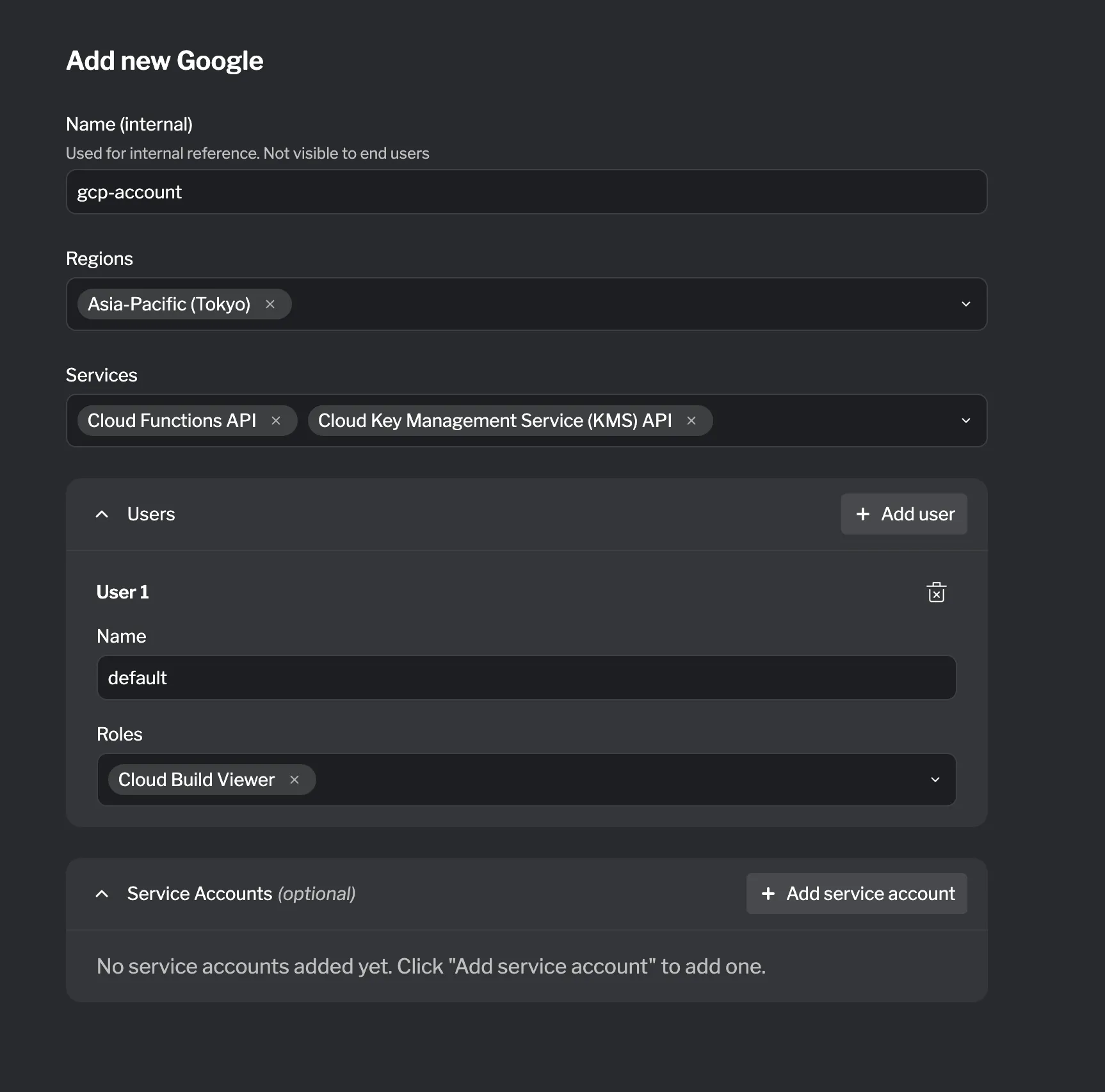
Configuration
Section titled “Configuration”| Field | Required? | Default | Description |
|---|---|---|---|
| Services | ✓ | List of Google Cloud services to enable in the project | |
| Regions | ✓ | List of Google Cloud regions to make available | |
| Labels | Key-value pairs for labeling the project |
| Field | Required? | Default | Description |
|---|---|---|---|
| Name | ✓ | Identifier for the user | |
| Roles | ✓ | List of IAM roles to assign to the user |
Service Account
Section titled “Service Account”| Field | Required? | Default | Description |
|---|---|---|---|
| Name | ✓ | Identifier for the service account | |
| Roles | ✓ | List of IAM roles to assign to the service account |
Summary
Section titled “Summary”Cloud provider resources allow you to provision real AWS accounts, Azure subscriptions, and GCP projects as part of your lab. Each provider supports configuring enabled services, regions, and resource tags or labels, as well as defining users and service identities with fine-grained access control.
By using cloud provider sandboxes, you can build labs that give participants hands-on experience with real cloud environments, using native tools and consoles — providing an authentic learning experience that closely mirrors real-world cloud workflows.