
Scripts & Files
The Scripts & files tab shows all scripts and files available in your lab. From here you can browse, open, edit, and save them directly.
It is divided into two subtabs: Resources and Project. Each provides a different way to browse your lab’s scripts and files.
Resources
Section titled “Resources”The Resources subtab organizes scripts and files by the resources that use them.
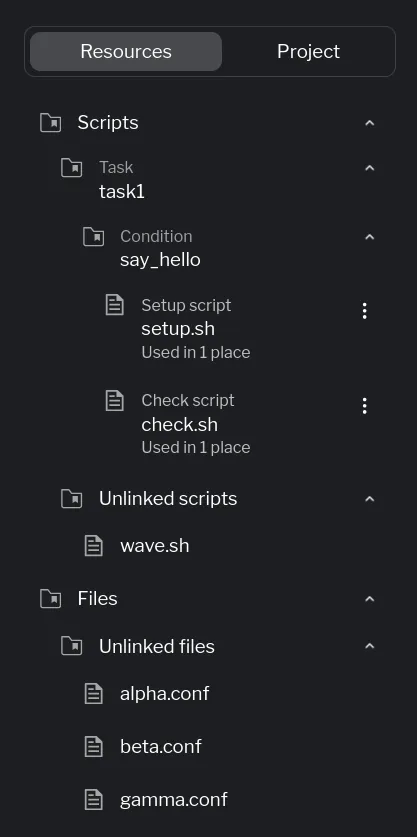
Scripts
Section titled “Scripts”Scripts are grouped under the resource they belong to. For example, a task’s condition will show its setup script and check script nested beneath it. Each script displays a usage indicator (e.g., “Used in 1 place”) so you can quickly see where it is referenced. If a script is referenced by an exec resource, it will also appear grouped under that resource.
If a script is not used by any resource, it appears under the Unlinked scripts section.
Files follow the same pattern. Files that are referenced by resources appear under the corresponding resource, while files not linked to any resource appear under Unlinked files.
Navigating to a resource
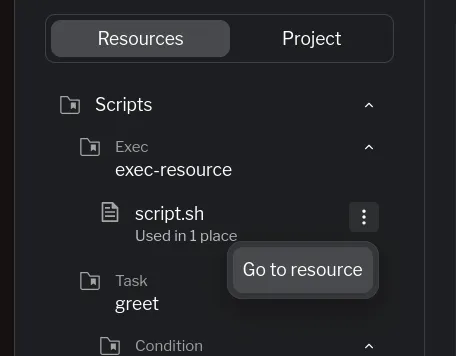
Section titled “Navigating to a resource”Each script or file listed under a resource has a Go to resource action. Clicking it navigates you directly to the resource that references that script or file, so you can quickly view or edit its configuration.
Project
Section titled “Project”The Project subtab displays all scripts and files in your lab, without any resource mapping.
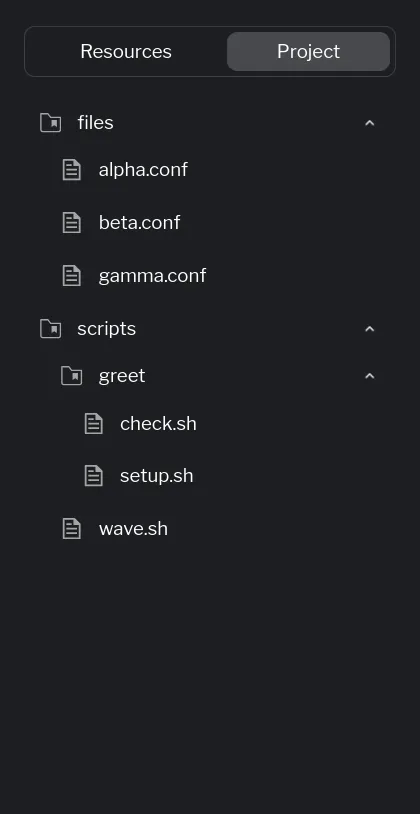
All files and scripts are listed in their folder structure. Subdirectories are shown as collapsible folders, reflecting the actual project layout. This view is useful when you want to see all your files without the context of which resources use them.
Editing Files
Section titled “Editing Files”Click any file or script in either subtab to open it in the editor panel on the right side of the screen.
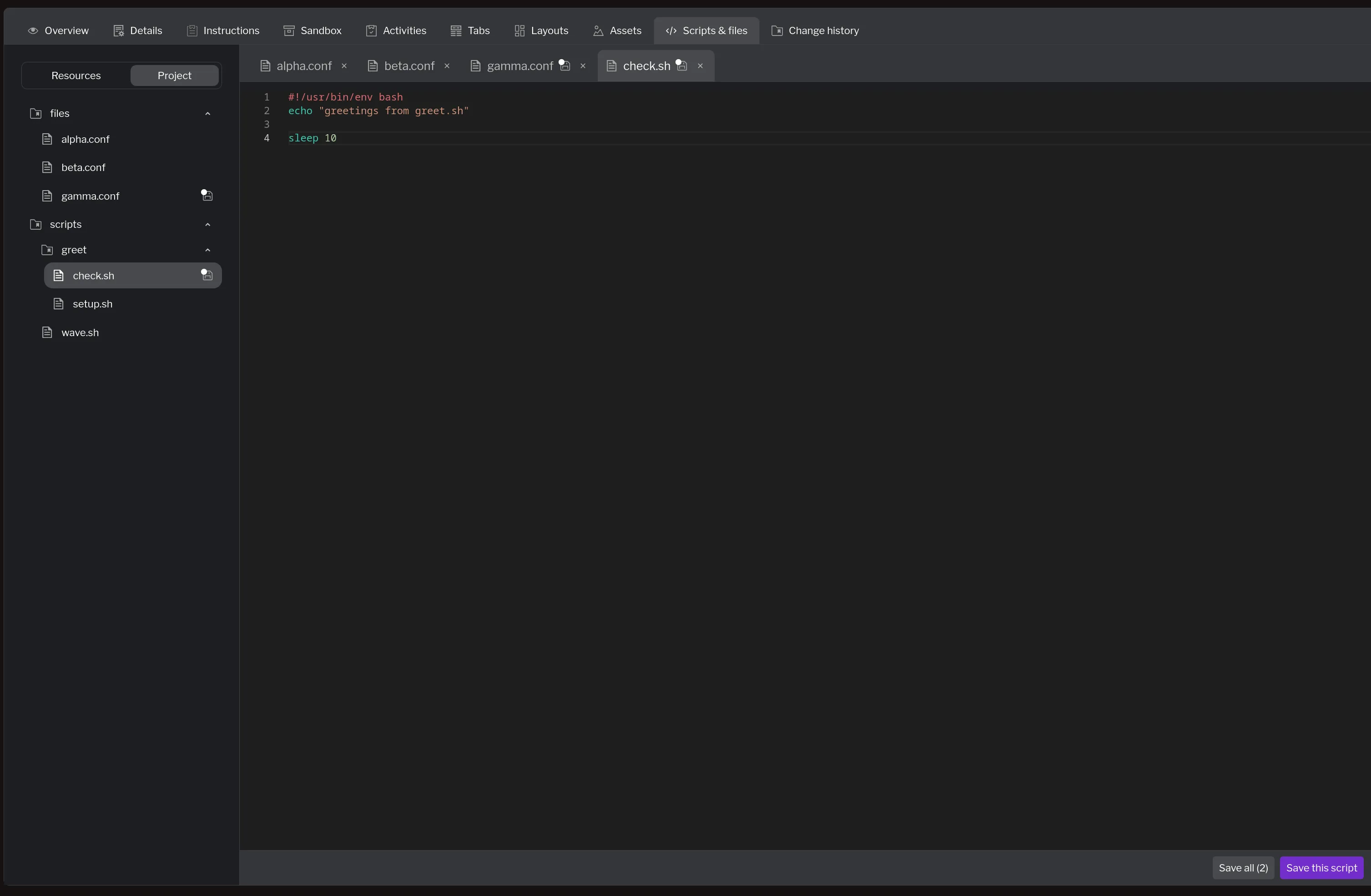
From the editor you can:
- Edit content directly in the editor panel.
- Save individually by saving the currently open file after making changes.
- Save all at once by keeping multiple files open, making changes across them, and then saving all modified files together.
Summary
Section titled “Summary”The Scripts & files tab provides a single place to view and edit all scripts and files in your lab:
- Resources subtab groups scripts and files by the resources that reference them, and highlights unlinked items.
- Project subtab shows all scripts and files in their folder structure.
- Click any file to open it in the built-in editor, where you can modify and save changes individually or in bulk.
Next Steps
Section titled “Next Steps”- Learn about creating activities that use scripts
- Configure sandbox resources that reference scripts
- Manage assets for your lab