
Reviewing & Editing Research
After you start a company or product research run, you land on its detail page. This is where you review what the AI produced and refine it before publishing. Reviewing and editing works the same way for both companies and products.
The detail page
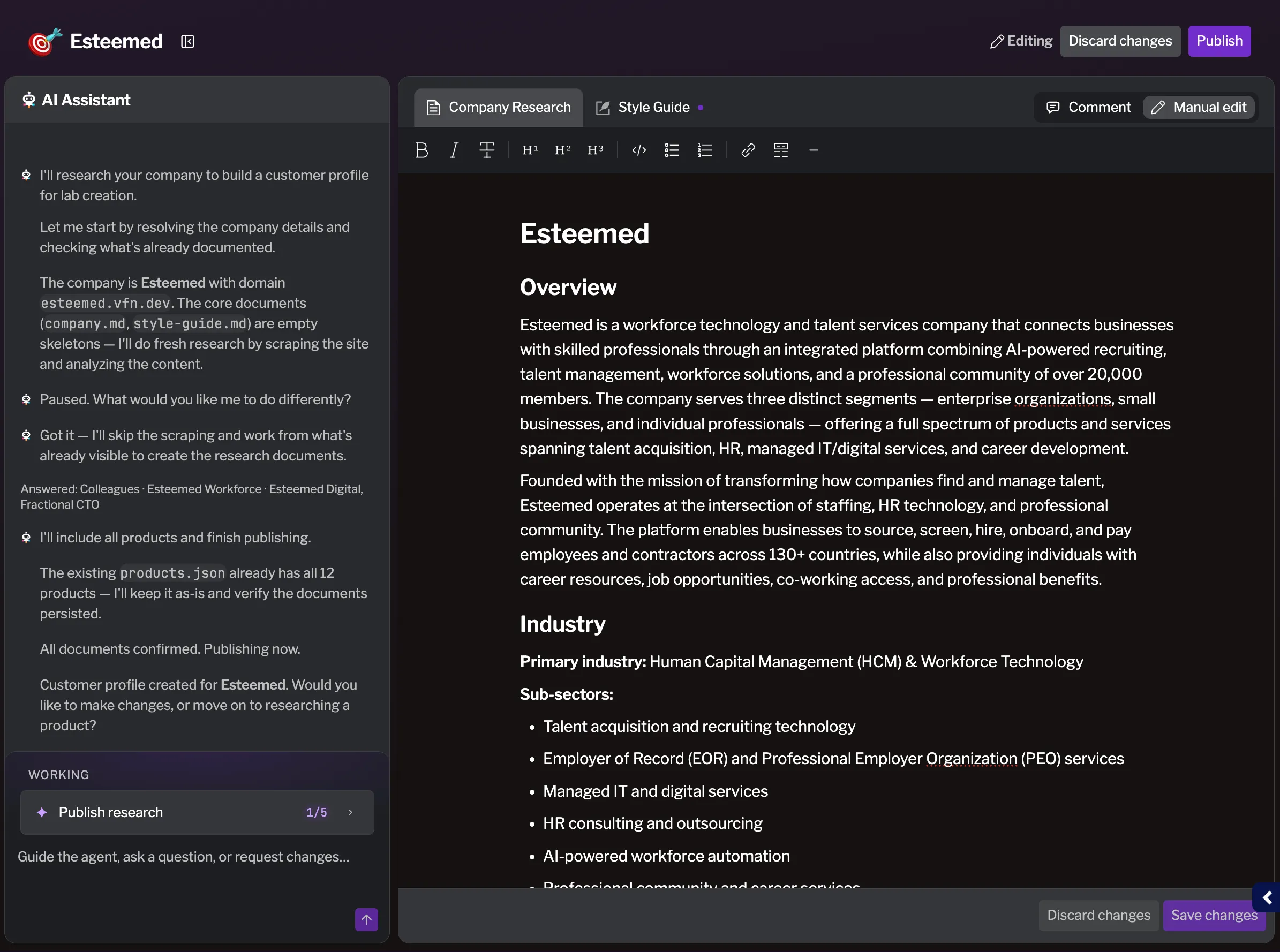
Section titled “The detail page”The detail page has two panels:
- AI Assistant (left) — a chat panel for interacting with the research agent.
- Research document (right) — the generated profile, shown in an editor.
You can show or hide the AI Assistant panel with the toggle in the header; your preference is remembered.
Switching between documents
Section titled “Switching between documents”A research profile is made up of more than one document (for example Company Research and Style Guide). When there’s more than one, they appear as tabs above the document. A small dot next to a tab marks a document the agent has updated since you last looked at it.
Editing research
Section titled “Editing research”By default the document is read-only. To make changes, click Edit mode in the header. While editing, you can work in one of two modes, selected with the Comment / Manual edit toggle.
Comment mode
Section titled “Comment mode”Comment mode lets you mark up the document and hand your feedback to the AI agent, rather than editing the text yourself. It’s the best choice when you want the agent to make the change.
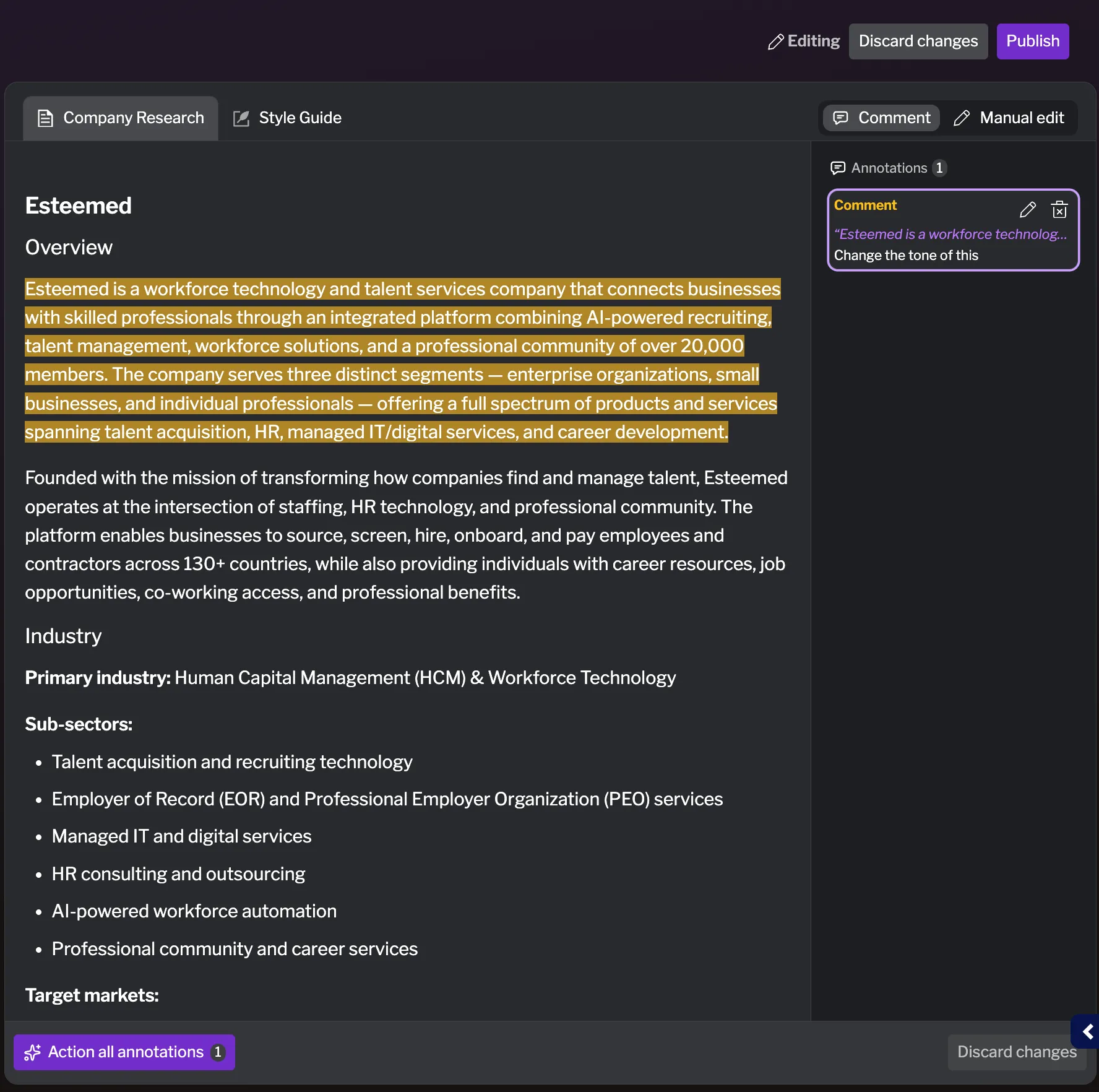
- Select some text in the document. A small toolbar appears with three choices:
- Comment — leave a note explaining what you want changed.
- Delete — mark the selected text for removal.
- Quick action — pick a predefined instruction (see below).
- Your marked-up spans are highlighted in the document and listed in the annotation sidebar on the right, where you can edit a note or remove an annotation.
- When you’ve added all your feedback, click Action all annotations to send it to the agent as a single message. The agent then revises the document accordingly.
Quick actions are shortcuts for common requests, so you don’t have to type the same instruction repeatedly:
- Clarify this
- Missing overview
- Verify this
- Give me an example
- Match existing patterns
- Consider alternatives
- Ensure no regression
- Out of scope
- Needs tests
Manual edit mode
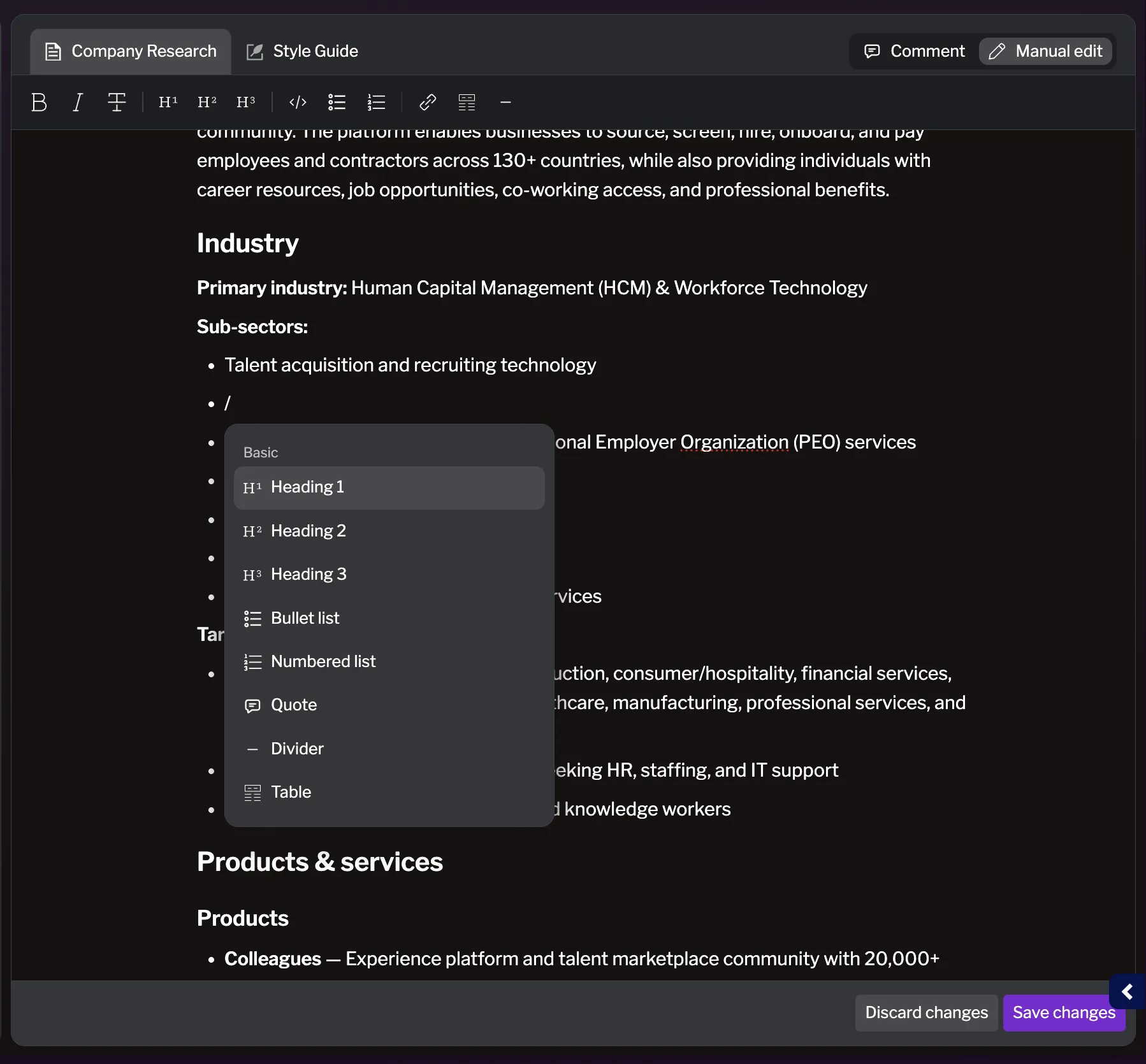
Section titled “Manual edit mode”Manual edit mode gives you a Markdown editor to change the document directly. Use it when you’d rather make a precise edit yourself than describe it to the agent.
- Switch the toggle to Manual edit.
- Edit the document directly in the Markdown editor.
- Click Save changes to keep your edits, or Discard changes to revert the document to its last-saved content.
Stopping or deleting research
Section titled “Stopping or deleting research”From the actions menu (the three-dot menu) on a research item or its detail page:
- Stop researching — appears only while a run is in progress. Stops the running research workflow.
- Delete — permanently removes the research item and all of its associated data. You’ll be asked to confirm.